

Introduction
The shift to remote work has turned many homes into primary offices, offering convenience and flexibility but also unique ergonomic challenges. Without a proper setup, your home workspace can become a source of discomfort or injury instead of supporting productive, pain-free work.
Working from home shouldn’t mean sacrificing physical wellbeing. Thoughtfully designed spaces help prevent common issues like neck pain, back strain, and wrist injuries that often plague remote workers. Research comparing home versus ergonomic workstations shows significantly less musculoskeletal pain when setups are optimized.
This guide will help you create an ergonomic home office that promotes neutral posture, healthy movement, and greater comfort throughout your remote workday.
Core Principles of an Ergonomic Home Office
Why Ergonomics Matters
An ergonomic home office optimizes physical health, daily comfort, and productivity. By aligning your workspace with your body’s natural posture, you can reduce musculoskeletal disorders (MSDs), enhance focus, and lower fatigue. Proper ergonomics also supports long-term prevention of chronic conditions linked to poor workstation design.
Common Discomforts & How Setup Helps
Remote workers often report issues that thoughtful ergonomics can address:
- Neck Pain: Typically caused by screens placed too low or high.
- Back Strain: Results from inadequate lumbar support or sitting with poor posture.
- Wrist/Hand Pain: Occurs if the keyboard and mouse force awkward wrist angles.
- Eye Strain: Linked to improper lighting or monitor distance.
Adjusting chair height, desk setup, and monitor placement counteracts these issues, letting you focus on work instead of discomfort.

Anthropometry & Workspace Planning
Critical Body Measurements
Effective ergonomic design begins with understanding body measurements that influence your workspace. According to the Ergonomics and Design Reference Guide, you should pay attention to elbow height (seated), eye height (seated), and popliteal height (distance from floor to underside of the thigh behind the knee). These dimensions help set optimal desk, chair, and monitor heights.
Ensuring your setup accommodates a range of body types is crucial, but always tailor adjustments to your own comfort and proportions.
Applying Adjustability
Relying on fixed-height furniture often leads to misalignment. Instead, choose adjustable chairs and, if possible, an adjustable desk. When you can’t replace furniture, use simple solutions like footrests, keyboard trays, and monitor risers to achieve proper posture.
Ergonomic Seating Solutions
Chair Features to Prioritize
Your chair is the foundation of comfort. Look for these essential adjustability features:
- Seat Height: Adjust so feet rest flat on the floor and knees align near 90 degrees.
- Seat Depth: Support thighs without pressuring the back of the knees.
- Lumbar Support: Fits the natural curve of your lower back.
- Backrest Angle: Allows slight recline to reduce spinal pressure.
- Armrests: Adjustable to keep shoulders relaxed.
Fitting Your Chair
When testing a chair, sit with your back against the backrest, thighs parallel to the floor, and feet flat. You should feel firm lumbar support and minimal pressure behind your knees. Budget options often require extra cushions or footrests to achieve full support, while premium models offer extensive adjustability and longer warranties.
For specific chair recommendations, this guide to ergonomic essentials provides insights on different price points and features to consider.
Worksurface & Desk Setup
The Reality About Standing Desks: What Recent Research Shows

Sit-stand desks have become incredibly popular, with the global market projected to reach $12.6 billion by 2032. Recent studies from 2024, however, reveal a more nuanced picture than the initial excitement suggested. Research from the University of Sydney involving over 83,000 participants found that prolonged standing may not improve heart health and could even increase the risk of certain circulatory problems.
Key Finding: While alternating between sitting and standing at work decreases sedentary behavior, it has no significant effect on lowering blood pressure according to a study led by West Virginia University researchers. In fact, standing for more than two hours a day was linked with orthostatic circulatory disease in some studies.
The takeaway isn’t that standing desks are useless, but rather that “standing is generally better than sitting, but by itself, it’s not enough to make us healthier. To improve your overall health and lower your risk of heart disease, you have to mix in actual movement,” according to University of Sydney researcher Matthew Ahmadi.
How to Use Standing Desks Effectively
If you have or plan to get a sit-stand desk, here’s how to use it properly:
- Follow the Movement Principle: Studies show that height-adjustable workstations are most effective when users reported a 17 percent reduction in sitting but combined this with regular movement breaks.
- Start Gradually: Begin with 30-60 minutes of standing per day and gradually increase.
- Use Anti-Fatigue Tools: Consider balance boards or anti-fatigue mats to enhance the standing experience.
- Listen to Your Body: Avoid locking your knees and maintain slight movement to help blood circulation.
Fixed Desks & Workarounds
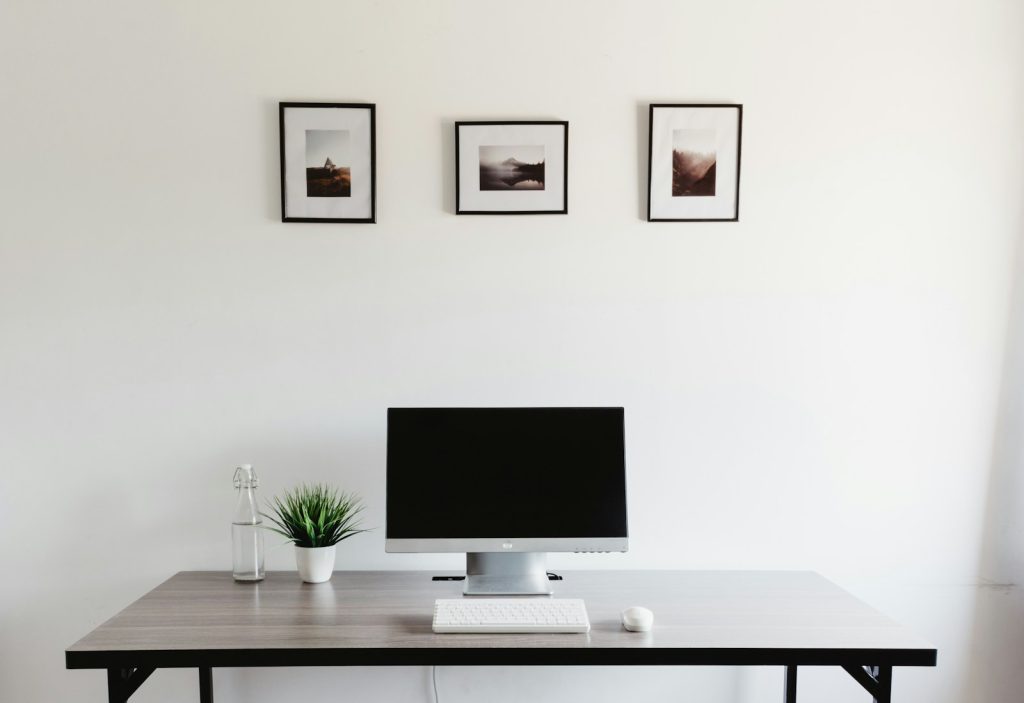
If you use a fixed-height desk, ensure its surface aligns with your elbow height when typing. You might need a keyboard tray or monitor riser to maintain neutral wrist and neck positions. Stability and available storage are advantages of fixed desks, but you’ll likely need accessories to achieve ideal ergonomics.
Maintaining an Organized Space
Cluttered work surfaces can cause awkward reaching and twisting. Keep frequently used items nearby and bundle cords neatly to avoid tangles or trip hazards. Under-desk cable trays, cable sleeves, and clips make it easier to move freely around your workspace.
Monitor & Visual Comfort
Height, Distance, and Angle
An incorrectly positioned monitor is a leading cause of neck pain. Aim to align the top of your screen at or slightly below eye level. Keep the monitor about an arm’s length away, adjusting for screen size and personal vision needs. Tilt the screen slightly upward to maintain a comfortable angle. For multiple monitors, position the primary one front and center.
Laptop users should use a stand that elevates the screen to eye level, paired with an external keyboard and mouse for neutral wrist positions.
Lighting Strategies
Proper lighting protects you from eye strain. Bright overhead lights can glare off screens, while dim surroundings force eyes to work harder. Proper lighting conditions and screen positioning can significantly reduce fatigue. A desk lamp directed away from screens helps, as does placing your monitor perpendicular to windows to minimize direct sunlight.
Color temperature also matters. Warmer (around 3000K) bulbs can be easier on your eyes if you work longer hours, and balanced ambient lighting avoids sharp contrasts that strain vision.
Input Devices & Reach Zones
Arranging Your Workspace by Zones
Organizing items by reach zones ensures you rarely overextend. Frequently used items, such as your keyboard and mouse, belong in the primary zone—reachable with your elbows at your sides. Secondary items, like reference materials or phones, go in the extended zone where you can reach without leaning. Tertiary items, used rarely, can be stored farther away or in drawers.
Keyboard & Mouse Positioning
Keep the keyboard directly in front of you at elbow level so wrists remain neutral. Place your mouse close to the keyboard at the same height. If your desk is too tall, consider a keyboard tray. A slight negative tilt (front edge higher than the back) can reduce wrist extension. Experiment with different keyboard and mouse designs to find what’s most comfortable.
Clearances & Circulation Space
Under-Desk Legroom
Adequate legroom helps you sit comfortably, move freely, and avoid unnatural postures. The OSHA Office Ergonomics Guide suggests at least 20-24 inches of width under the desk. Keep that space clear of boxes, drawers, or cables to prevent cramps and awkward angles.
Space for Movement Breaks
An ergonomic setup encourages postural variety. Provide enough room to stand up easily, shift in your chair, and take quick breaks. Even a small area for stretching can improve circulation and overall wellbeing.
Active Workstation Options
Treadmill Desks: The New Frontier
Treadmill desks represent an emerging approach to combating sedentary work. Recent research shows mixed results: while some studies report significant negative impacts on learning and processing speed, others found positive impacts on short-term memory and attention after use.
For typing work, the optimal speed was found to be 1.4 miles (2.25 km) per hour, which produced no difference in typing speed compared to sitting conditions. Over the course of a year, treadmill desk users demonstrated increased daily physical activity and significant decreases in daily sedentary time, though specific health benefits were minimal.
Best Practices for Treadmill Desks:
- Start with slow speeds (0.5-1.0 mph) and brief sessions
- Use for tasks like reading, emails, or phone calls rather than intensive typing
- Ensure proper keyboard and monitor positioning to avoid strain
- Consider under-desk treadmills paired with adjustable standing desks
Balance Boards and Wobble Cushions
Balance boards and wobble cushions offer a middle ground between static standing and full movement. These accessories encourage subtle movement while standing, which can help strengthen core muscles, improve balance, and reduce physical strain associated with standing all day.
Wobble cushions provide an unstable surface that engages stabilizing muscles not typically activated during regular exercise, making them ideal for improving proprioception and strengthening legs and core.
Popular options include:
- Standing Balance Boards: Provide gentle rocking motion while standing
- Inflatable Wobble Cushions: Can be used on chairs or while standing
- Anti-Fatigue Balance Boards: Combine cushioning with balance training
Adapting to Home Constraints
Working in Small or Multi-Use Spaces
If your workspace is limited, consider corner desks, wall-mounted foldable desks, or vertical storage to keep floors clear. Use slim monitors, wireless peripherals, and multi-functional furniture to maximize space without sacrificing posture. Monitor risers, laptop stands, and portable accessories let you maintain ergonomics even in tight conditions.
Shared Spaces & Portability
In shared living areas, visually define your work zone with simple dividers or rugs. Assemble a portable kit—like a foldable laptop stand, external keyboard, mouse, and lumbar cushion—that’s easy to set up and store. Noise-canceling headphones or white noise can help you focus without permanent modifications to your environment.
Low-Cost Adjustments
When budgets are tight, you can still achieve basic ergonomic improvements. Use books or stable boxes to raise monitors, roll up a towel for lumbar support, and add a footrest if your chair is too high. Although these DIY options might not offer the durability or fine-tuning of commercial products, they address core ergonomic principles until you can invest in upgrades.
Movement & Breaks for Wellness
The Science of Movement at Work
Research has shown that adding just 5 minutes of walking for every 30 minutes of sitting may significantly improve mental and physical health to a level that may counteract the negative impacts of prolonged sitting. The key isn’t just changing from sitting to standing—it’s incorporating actual movement.
Effective Movement Strategies
Frequent posture changes should help reduce stiffness and fatigue. Regular transitions throughout the day can help prevent prolonged sitting’s negative effects. Consider these approaches:
- The 20-8-2 Rule: Sit for 20 minutes, stand for 8 minutes, move/stretch for 2 minutes
- Micro-Breaks: Every 30 minutes, take 1-2 minutes to walk or stretch
- Active Standing: Use balance boards or anti-fatigue mats while standing
- Walking Meetings: Take calls while walking when possible
Mental Wellbeing & Ergonomics
Physical comfort is interlinked with mental health. Breathing exercises, mindfulness breaks, and contact with nature can alleviate stress and support focus. Define clear work hours and transitions—like a short walk—to mentally separate work from personal time. Such habits build resilience against burnout and chronic stress.
Troubleshooting & Common Issues
Addressing Pain and Discomfort
Despite best efforts, you may still experience discomfort. Common culprits include:
- Neck Pain: Check monitor height, avoid craning forward, and confirm eyeglasses aren’t forcing unnatural head positions.
- Back Pain: Revisit lumbar support and seat height. Ensure your chair allows you to sit fully back with feet firmly planted.
- Wrist/Hand Pain: Maintain neutral wrists and consider adjusting keyboard or mouse shape and location.
- Eye Strain: Adjust screen brightness, reduce glare, and increase text size rather than leaning forward.
If pain persists, you might need professional guidance.
When Professional Help Is Needed
Seek medical advice if persistent pain doesn’t improve after adjusting your workspace, or if you experience numbness, tingling, or radiating pain. An ergonomic specialist can provide a customized assessment, while physical therapists address underlying muscular imbalances. For chronic eye strain, an optometrist can recommend computer-friendly eyewear.
Technical Glitches
Sometimes equipment malfunctions undermine your setup. If your desk wobbles, tighten screws or add shims. A dropping chair might need a new gas cylinder. Keep spare keyboards and mice for immediate replacements when devices fail. Addressing hardware issues promptly prevents you from settling into harmful positions.
Building Your Complete Ergonomic Toolkit

Essential Elements for Success
Designing an ergonomic home office in 2025 means understanding that no single solution is perfect. Focus on these core elements:
- Neutral Posture: Adjust seating, keyboard, and monitor heights to maintain proper alignment.
- Screen Position: Keep monitors at eye level and about an arm’s length away.
- Proper Support: Invest in adjustable chairs, or use solutions like footrests and lumbar cushions.
- Movement Integration: Whether through standing desks, treadmill desks, or balance boards, prioritize regular movement.
- Organized Layout: Place frequently used items within easy reach, and manage cables neatly.
2025 Ergonomic Innovations to Consider:
- Smart desks with built-in movement reminders
- Under-desk elliptical trainers and bike pedals
- Balance boards with pressure point massage
- Monitor arms with easy height adjustment
- Blue light filtering technology integrated into monitors
Maintaining Healthy Work Habits
No matter how ideal your setup, staying in one posture for hours is unwise. Cultivate a routine of short breaks and posture changes. Schedule quick “ergonomic check-ins” to ensure your chair settings, monitor height, and accessories still suit you. As your workload evolves, reassess and refine your setup to maintain comfort.
Remember that the goal isn’t just standing or sitting—it’s about moving more and sitting less. The most ergonomic workspace is one that encourages regular position changes and keeps you comfortable throughout your workday.
Conclusion & Next Steps
Creating an ergonomic home office in 2025 requires a balanced approach that combines traditional ergonomic principles with new research insights about movement and posture. While standing desks remain valuable tools, the latest research emphasizes that movement—not just position changes—is key to health benefits.
Whether you choose a traditional desk with regular movement breaks, a sit-stand desk with balance board accessories, or explore innovative options like treadmill desks, the important thing is to find a system that works for your body, your work style, and your space constraints.
Start with the basics: proper chair adjustment, monitor positioning, and regular movement breaks. Then gradually incorporate additional ergonomic accessories as your budget and needs allow. Your future self will thank you for the investment in comfort, health, and productivity.
For a final boost to your knowledge, explore advanced equipment options or invest in professional assessments. Adapting your workspace is an ongoing process—listen to your body’s signals and make adjustments that support your well-being, productivity, and long-term health.
